
Notifications
You can customize your external notifications in a very granular way and send them to email, text message, or both depending on your preferences. Below are the steps to set up your notifications. Your notifications also appear within Carrot CRM, where you can view and archive them when convenient.
Set up your Email Notifications
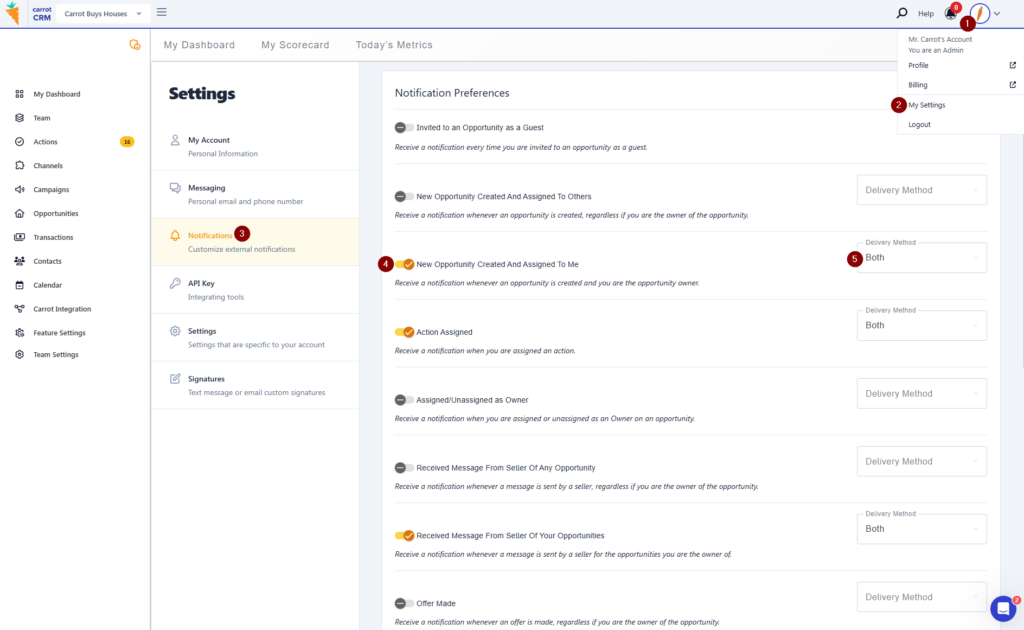
- Click your Profile Icon in the top-right corner of the site
- Select My Settings
- Go to Notifications
- Click the toggle button for each notification you want to turn on
- Select the delivery method to be SMS, email, or both
Check and Archive your In-app Notifications
All of your notifications appear within Carrot CRM no matter how you’ve set them up to email or send an SMS. The Notifications list gives you an activity log of everything happening within your Market Space. The bell icon in the right-hand corner of your upper static menu shows the number of new notifications you have yet to check or clear by archiving.
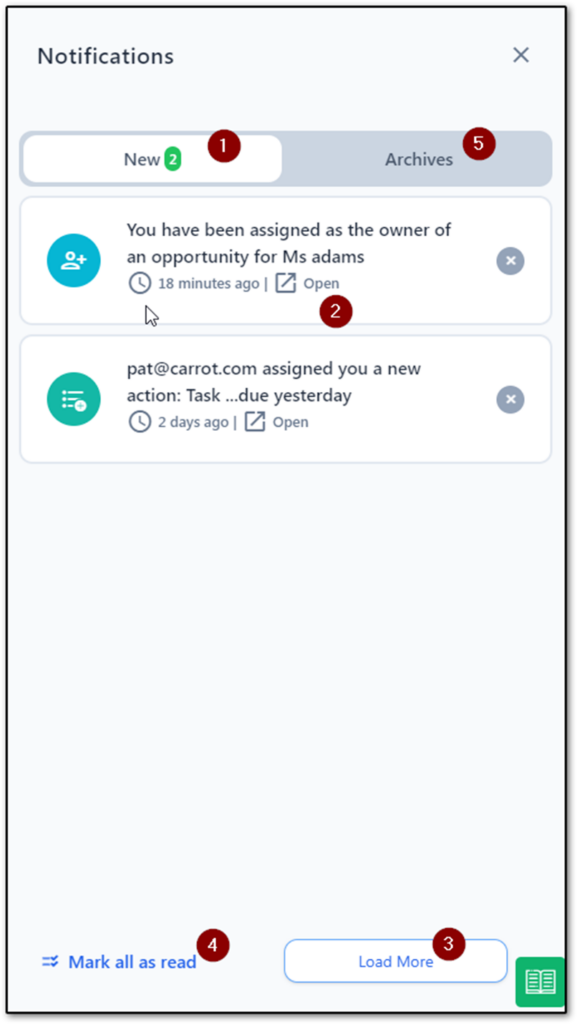
Click the Bell icon in the upper right-hand corner of the screen
- The system will default to the New menu
- Click on any notification which will open up that specific Action, Opportunity, etc.
- Click Load More to view the next page
- Click Mark all as read to move them to the Archive menu
- Click Archive to see your old/past notifications
Conclusion:
With the notifications properly configured on your account, you should be getting notifications whenever there is relevant activity on your workspace (new lead, new action assigned, etc) to ensure that you are on top of your leads and progressing them through each step of the deal process.
Was this article helpful?