
Integrations – Callrail
This article walks you through integrating CallRail with Carrot CRM so calls and texts are itemized as Opportunities in your Market Space. CallRail integrates via webhooks.
A webhook is a special type of URL that has the capability of receiving data from third party applications. It is required for that application to have the ability of sending such for it to be able to do integrations via webhooks.
Haven’t created a campaign yet?
These articles can help:
Create a Campaign in Carrot CRM first, then access the Campaign Settings to add the tracking number of your campaign.
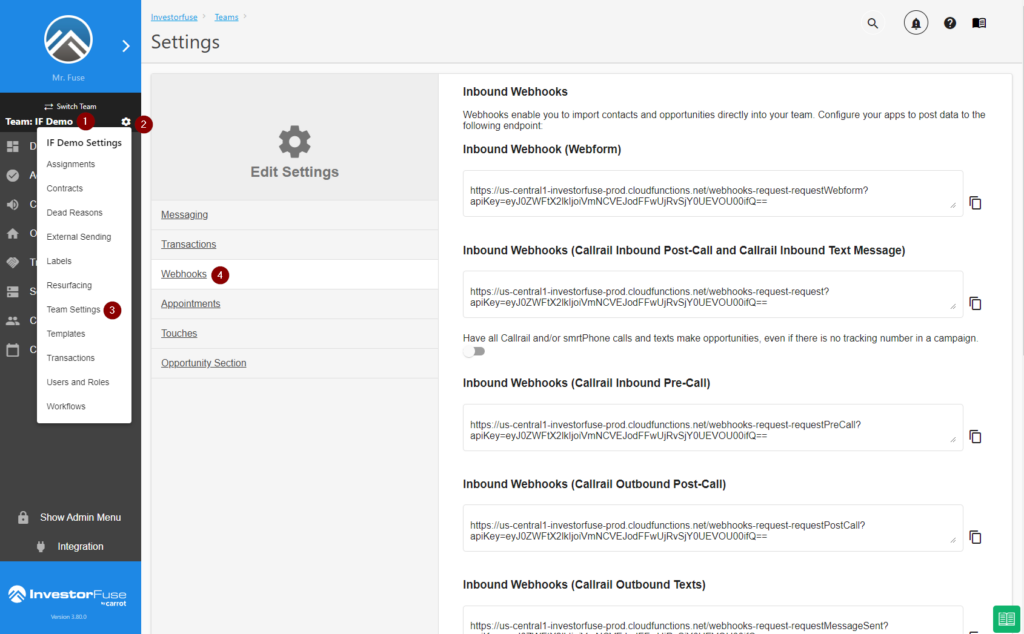
Locate Carrot CRM Webhooks
- Select a team in Carrot CRM
- Click the cogwheel icon
- Select Team Settings in the menu
- Go to Webhooks
Add Webhooks to Callrail
- Log in to your Callrail account
- Go to Settings in the left menu. If you have multiple Companies in CallRail, select the one that you want to integrate into Carrot CRM.
- Click Integrations at the top of the page
- Find the Webhooks integration
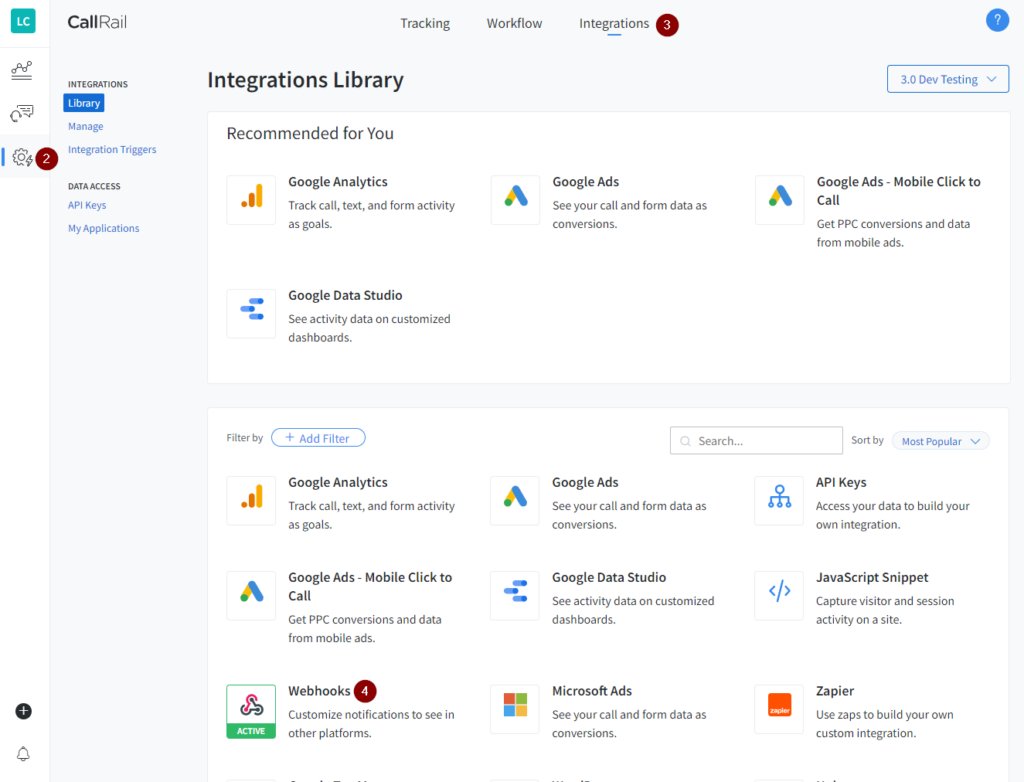
- Copy the following Carrot CRM Webhooks into their respective fields in CallRail
- Inbound Webhooks (Callrail Inbound Post-Call and Callrail Inbound Text Message) = Post-Call & Text Message Received
- Inbound Webhooks (Callrail Inbound Pre-Call) = Pre-Call
- Inbound Webhooks (Callrail Outbound Post-Call) = Outbound Post-Call
- Inbound Webhooks (Callrail Outbound Texts) = Text Message Sent
- Click the Update button at the bottom to save.
Click-to-Call Extension
We built a Chrome extension that allows you to do Click-to-Call using CallRail directly from Carrot CRM. You simply have to install the extension into your Chrome browser for this to work. Please note that the extension only works with Chrome browsers.
IMPORTANT NOTE: You need to have a Lead Center plan in CallRail for the click-to-call extension to work. Click here to see CallRail’s Lead Center plans and pricing.
Install the Carrot CRM Chrome Extension
Outbound Call Recordings – Enable the Call Recording for All Outbound Calls setting in CallRail to automatically record the outbound calls and save them in Carrot CRM.
- Search for InvestorFuse Chrome Extension on Google or click here (the extension is still published under its legacy InvestorFuse name)
- Click Add to Chrome to install the extension on your browser
- The extension should appear on the toolbar
- If you cannot see the extension:
- Click 🧩 the puzzle piece icon
- Look for the InvestorFuse extension (legacy name; this is the Carrot CRM extension)
- Click 📌 the Pin icon to pin it to the toolbar
- If you cannot see the extension:
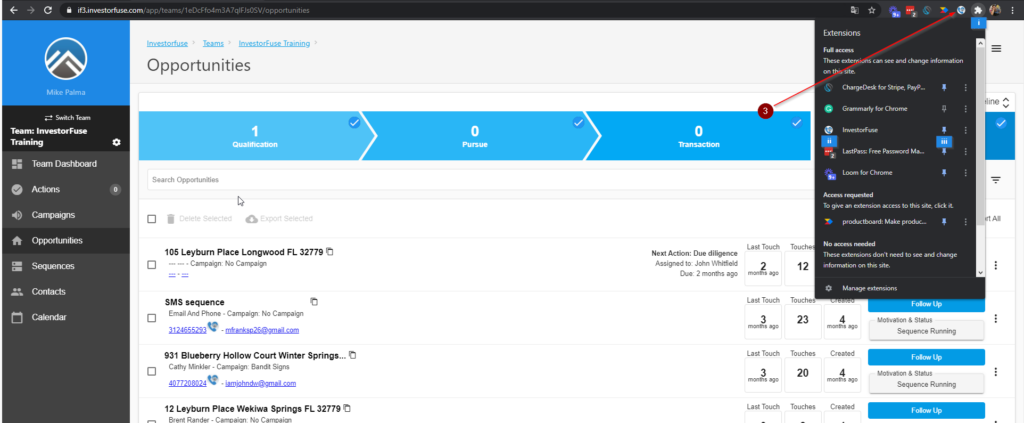
The extension is installed correctly if the extension logo appears next to any phone number in Carrot CRM. If you don’t see the extension logo after installing it, restart your Chrome browser.

Setting up the Extension
- Sign in to your CallRail account
- Look for the number that you are going to be calling from
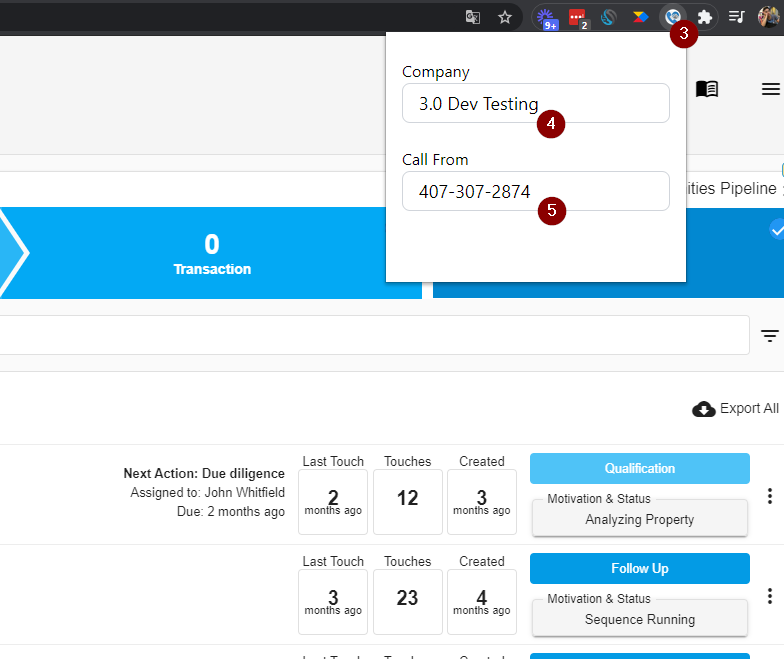
- Click the InvestorFuse extension on the toolbar (legacy name)
- In the Company field, enter the CallRail Company Name where the tracking number you are going to be calling from is located.
- Ensure that the Company Name you enter in the extension is EXACTLY the same in CallRail
- In the Call From field, enter the tracking number that you are going to be dialing from
- Refresh Carrot CRM and you are done
Use the Extension
Once you have the extension set up, you can start using it to call sellers within Carrot CRM through CallRail.
- Open the Opportunity with the seller you want to call
- Click the legacy extension icon next to the seller’s phone number
- CallRail will open in a new tab and automatically call the number
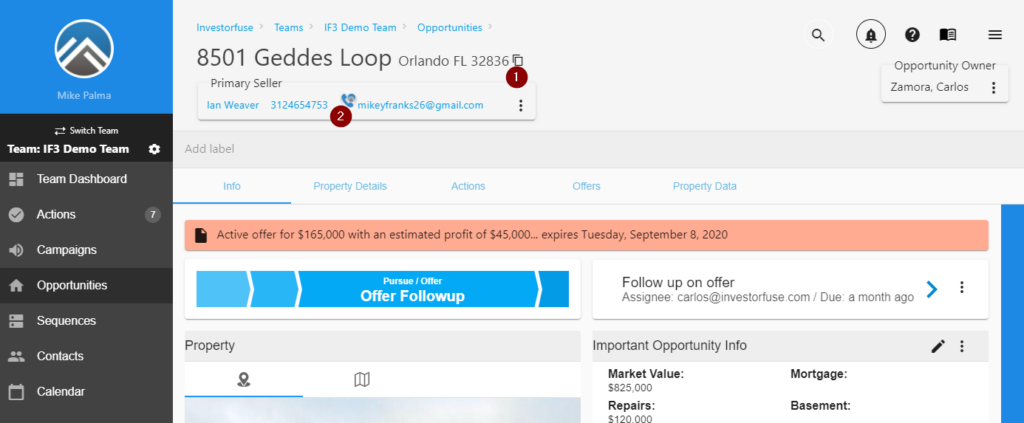
If the webhook was added properly, the outbound calls will be logged into the Activity and Communication log and will leave the link to the recording of the call.

If CallRail doesn’t automatically dial the phone number when you click on it, ensure that the company name and tracking number in your extension are exactly the same in CallRail.
smrtPhone/CallRail Pre-call Webhook Popup
NOTE: smrtPhone/CallRail Pre-call Webhook Popup is only available on the Scale and Team plans. If you have the Essential plan and would like to upgrade, please contact Support or email support@carrot.com.
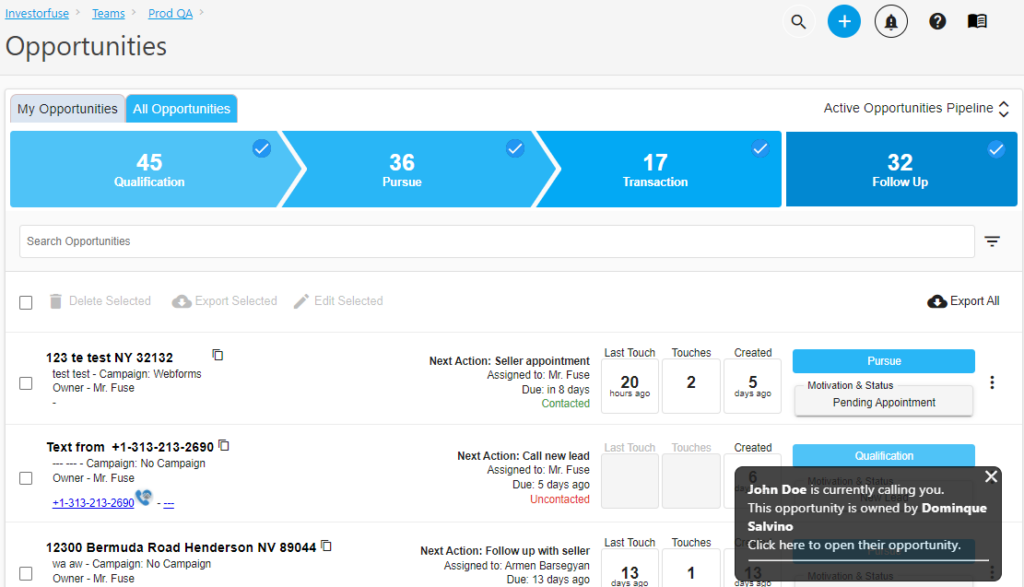
After integrating smrtPhone or CallRail, a popup will appear at the bottom-right corner of the screen when a call is received by one of the integrated tracking numbers. It will notify you that a call is in progress and will have a link to the Opportunity allowing you to quickly jump to it and view/update notes as you talk to the seller.
Conclusion:
This article walks through integrating CallRail with Carrot CRM to itemize calls and texts as Opportunities in your Market Space. The integration uses webhooks, which are special URLs that receive data from third-party applications. The CallRail Click-to-call extension also makes it easier to dial leads directly from your Carrot CRM workspace.
Learn More:
You can sign up for CallRail via this link.
Was this article helpful?